
Windows productivity for travel agents

Travel Genie
Magic Toolbar

Magic Toolbar is a Windows workspace for travel desks. It helps prepare passenger passport and contact entries in Amadeus, Travelport and Sabre formats, alongside shortcuts, reminders, photo tools and a directory. You review every field and copy the result into your own GDS.

Windows 11, 64-bit · 3-day trial · $30/month or $220/year

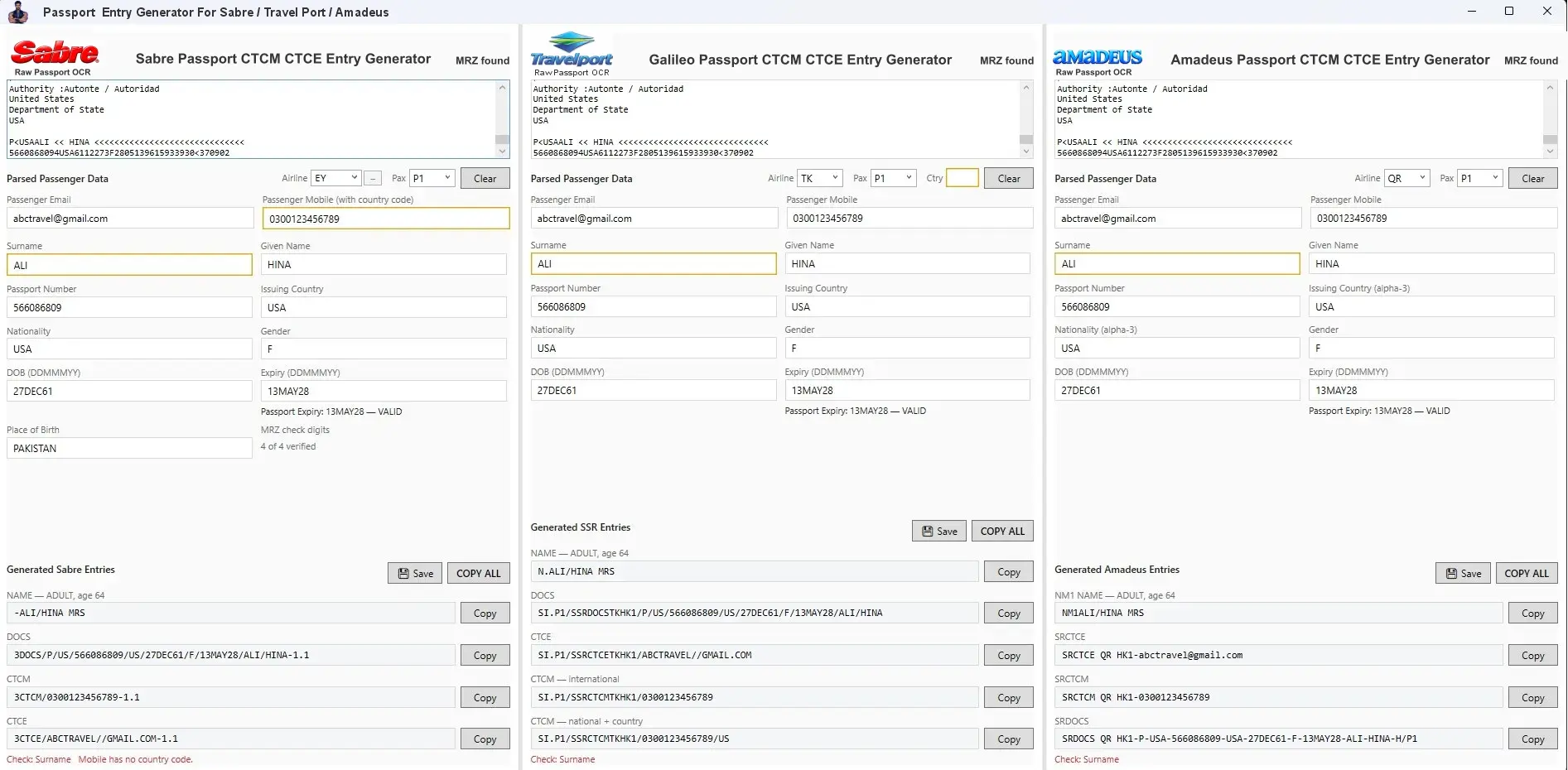
Magic Toolbar passport details and prepared entries in three GDS formats
Actual application screen. Review the fields before using generated entries.
What Magic Toolbar does — and where you stay in control
TaskToolbar supportYour next step
Passport detailsPrepare DOCS and passenger name fieldsReview passport, dates and passenger association
Passenger contactsPrepare CTCM and CTCE formatsConfirm passenger mobile, country code and email
GDS workCopy reviewed textUse your own GDS session and verify the response
Visa photographsFrame, straighten and check configured dimensionsConfirm the destination’s current official specification

Magic Toolbar does not issue tickets, hold inventory or guarantee document acceptance. Separate specialist applications are not included. Read about data handling.

Inside Magic Toolbar

One toolbar. Twelve everyday tools.

Everything here is included with Magic Toolbar. These aren't separate purchases, just daily reservation jobs all the day, gathered in one place.

Time is Money-Genie Saves Both!

EXPLORE YOUR TOOLBARPassport Entries Generator· All GDS

Prepare passport entries for your GDS workflow, including Amadeus, Travelport and Sabre formats.

Passport details & DOCS

One passport. Every entry you need.

Paste or read the passport, and Magic Toolbar fills in the passenger fields and prepares the NAME, DOCS, CTCM and CTCE entries for Sabre, Travelport and Amadeus, all side by side.

  • Finds the machine-readable zone and verifies its check digits
  • Checks passport expiry and shows whether it’s valid
  • Works out passenger type and title from the date of birth
  • Flags what needs a second look, such as a mobile number without a country code
  • Copy a single entry, or save and COPY ALL

Know the limits: image quality matters, and missing details stay blank until you confirm them. Check every generated entry before it goes into a booking.

Close-up of the Travelport panel: parsed passenger fields with generated NAME, DOCS, CTCE and CTCM entries and copy buttons
Close-up · Travelport panel

CTCM

Passenger mobile contact

CTCM carries the passenger's mobile number, so the airline can reach the traveller about schedule changes and disruptions. Magic Toolbar prepares it for each GDS and warns when the country code is missing.

SI.P1/SSRCTCMTKHK1/923000000000

CTCE

Passenger email contact

CTCE carries the passenger's email address. Special characters are encoded the way GDS entries expect, for example @ written as //.

SI.P1/SSRCTCETKHK1/AHMED.KHAN//EXAMPLE.COM

Code examples use synthetic data. Always confirm formats against your GDS. Passenger contacts are different from agency contacts.

Try the workflow

See the input. See the entry.

Switch between workflows and GDS formats to see how reviewed details become an entry ready to check and copy.

Reviewed details

Surname
KHAN
Given names
AHMED
Passport
AB1234567
Issuing / nationality
PAK / PAK
Date of birth
01JAN90
Sex
M
Expiry
31DEC30

Prepared entry · Amadeus

SRDOCS YY HK1-P-PAK-AB1234567-PAK-01JAN90-M-31DEC30-KHAN-AHMED/P1

Illustrative synthetic example. Verify against your GDS before use.

Take the tour

Everything else in the toolbar, as it really looks

Real screens from Travel Genie Magic Toolbar. All included, with no separate purchases. Choose a tool to see it.

Passport photograph

  • Drag the frame to the crown and chin, or fit the head to 75% in one click.
  • Straighten in 0.5° steps or turn the photo 90°.
  • A checklist measures the final JPEG: pixel size, 35:45 ratio, file size, head height, centring and background.
  • Problems are explained in plain words, such as a crown too close to the top edge.

Measures the photo against the configured specification. It can’t guarantee acceptance, so confirm current requirements with the issuing authority.

Passport photograph window with crown and chin guide lines, a head-height marker, and a checklist measuring pixel size, frame ratio, file size, head height, space above head, centring, background and JPEG quality
Passport photograph
FAQ

Frequently asked questions

Short, direct answers about Magic Toolbar for travel agents. Each one covers a real question from the travel desk, from passport reading and shortcuts to saved records, system needs and getting help from our team.

Who is Magic Toolbar for?

Magic Toolbar is for travel agents and ticketing staff who work in Amadeus, Travelport or Sabre every day. It saves typing on passport and contact entries. It also keeps daily tools like shortcuts, notes and reminders in one place on Windows. You stay in control and check every entry.

Is Magic Toolbar passport reading always correct?

No tool reads every passport perfectly. Magic Toolbar checks the MRZ check digits and marks fields that need a second look. Unclear or missing details stay blank until you fill them in. Always compare the result with the real passport before you copy any entry.

How do the F1–F12 shortcuts work in Magic Toolbar?

Open the Container Manager and save text you type often, such as fare rules, baggage notes or greetings. Give each one a key from F1 to F12, or Shift plus a key. Press the key and the text appears. You can sort texts into groups and back them up.

Does the visa photo tool guarantee approval?

No. The visa photo tool measures your photo against the size rules you pick, such as the 35:45 frame, head height and background. It explains any problem in plain words. Each embassy has its own rules, so always check the latest official photo rules before you send an application.

Can I move saved records to a new PC?

Yes. Use Export in the Families module, then Import on the new PC or Windows account. Saved records are locked to your Windows account with Windows DPAPI, so copying the raw file will not work. Export and Import is the safe way to move them.

Are the other Travel Genie products included?

No. Each other Travel Genie product, such as the CRM or the NADRA Visa Cross-Check, is a separate app. Each has its own page, release details and terms. Some are still being prepared, so their pages show what is confirmed and what is not yet.

What do I need to run Magic Toolbar?

Magic Toolbar runs on a 64-bit Windows 11 PC. Please read the User Guide before you install it. After you install, our team turns on the app for your PC as part of your plan. Each PC on your plan needs its own activation.

How do I get help with Magic Toolbar?

Use the chat on this website for quick answers, or message our team on WhatsApp. You can also send us an email. Tell us your Windows version, the tool you used and what went wrong. Please hide passenger details in any screenshot you send.